
Modern workplaces thrive on clear, relevant, and accessible training. Video Studio from iProtectU offers a flexible way to take your own expertise, documents, and learning objectives and convert them into polished video courses. This guide walks through how to use the Video Studio module, from creating training videos to publishing them in your organisation’s Learning and Development Centre (LMS) and scheduling the training to teams.
What Is iProtectU Video Studio?
The Video Studio module within iProtectU is designed for anyone who wants to create professional workplace training. It bridges the gap between your knowledge and your teams’ learning, allowing you to build video content for inductions, safety briefings, refresher sessions, and role-specific training. With a connected workflow, you can bring together learning experts, subject specialists, and everyday workplace knowledge.
Who Is Video Studio For?
This module suits trainers, HR professionals, health and safety managers, team leaders, and anyone responsible for upskilling or orienting staff. Whether you are updating an existing process or onboarding new team members, Video Studio helps you create engaging content from scratch or rework existing documents into effective video training.
Getting Started: Choosing Your Creation Route
Video Studio lets you start with what you already have:
- Write Your Own Script: Build courses around your own message, using your workplace terminology and expertise. Write or paste your script directly into the module, shaping the training to your needs.
- Create From an AI Brief: Set the topic, target audience, and desired video length. The AI generates a suggested storyboard that you can review and edit, saving time and offering a starting point to customise further.
- Use Existing Documents: Upload PDF, Word, PowerPoint, or plain text materials. The system turns them into storyboard slides, refreshing your static documents into a modern video course.
This flexibility ensures that your subject matter stays connected to your teams, whatever your preferred approach. Imagine a scenario where a safety officer adapts a risk assessment in Word format into an interactive induction video, using photos and narration from the site to bring the material to life. Alternatively, an HR team might choose the AI brief option to create a quick, tailored onboarding video for a new policy rollout. These options support trainers with differing levels of video or content creation experience and encourage regular knowledge sharing from subject matter experts.
Shaping Your Training: Storyboard and Scene Editing
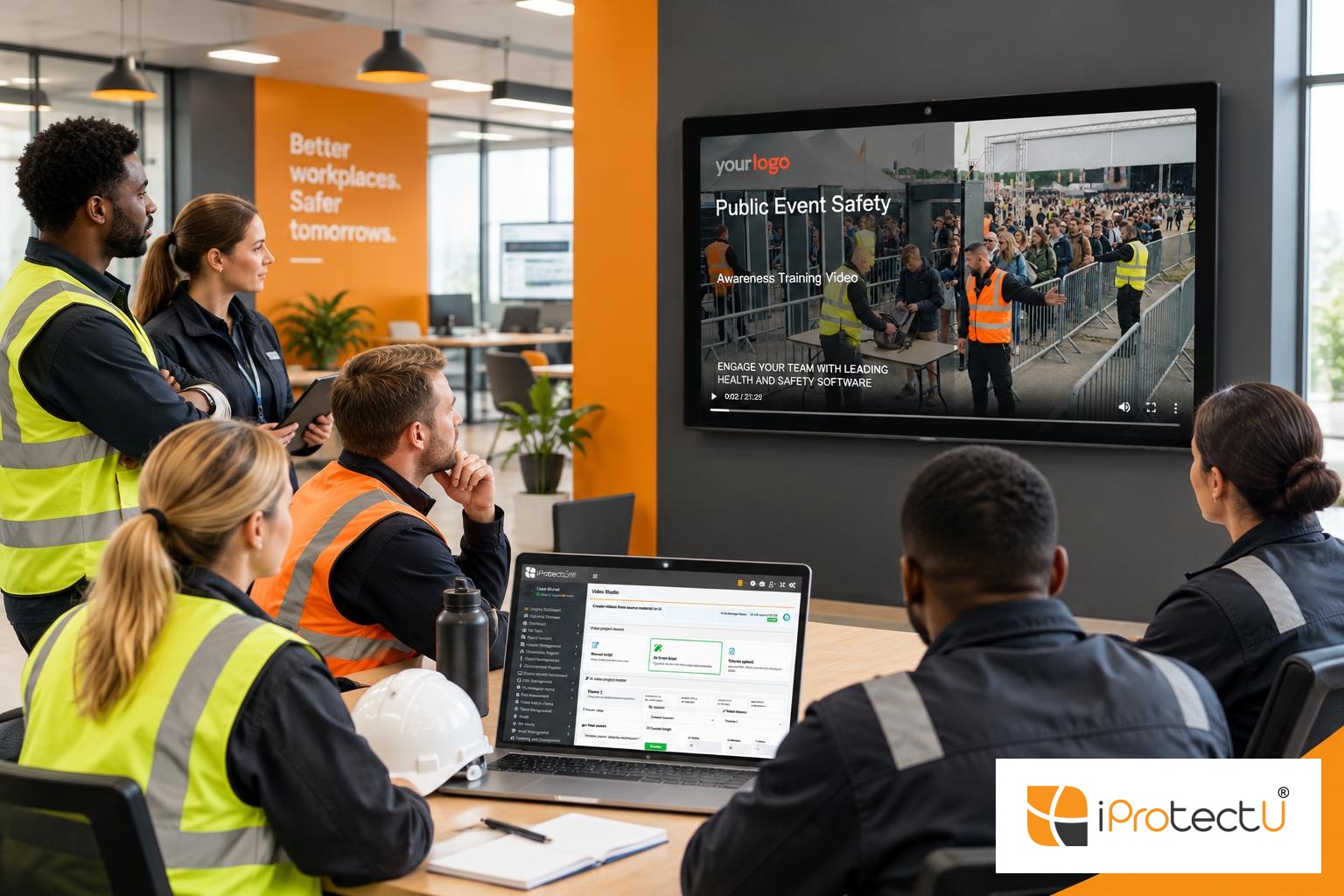
The heart of effective video training lies in keeping the learning message clear. Video Studio presents your course as a storyboard, where every scene is editable:
- Edit on-screen text, titles, and narration to match your expectations and company language.
- Rearrange scenes for flow and clarity.
- Add images, video clips, music, and captions to keep the training lively and accessible.
- Make use of translation tools if your organisation supports a multilingual workforce.
- Preview changes as you refine scenes, ensuring quality before finishing the course.
The storyboard approach is helpful because it breaks the video into manageable chunks. For example, you could start with an introduction that explains the topic, followed by scenes covering key hazards, control measures and correct behaviours. An engineer creating a fire safety video might use on-site photos in one scene, add animated diagrams in another, and finish with a narrated recap. As you adjust content, you can bring in additional visuals, for instance, relevant PPE images for a personal protective equipment module, or step-by-step instructions for a new process. By previewing the whole training before it goes live, you avoid common mistakes such as jargon-heavy narration, cluttered visuals, or mismatched images.
Managing Media and Projects
As you build training projects, Video Studio keeps your work organised with dedicated media and project libraries. Here you can:
- Find draft and completed projects at a glance.
- Return to work-in-progress courses using clearly marked issue tracking.
- Browse your clip library for reusable video and image assets, seeing where each item is already in use.
- Play or download your completed MP4 video files.
This centralised media management makes it easier to maintain consistency and saves time. Rather than creating the same asset repeatedly, trainers can pull approved visuals or clips from previous projects. For example, if you have a standard scene showing site access arrangements, use the same video clip across multiple courses such as induction, contractor briefing or periodic refresher. By keeping track of which courses use which assets, you can quickly update them following a policy change or equipment upgrade.
Publishing to Your LMS
When your course is ready, publishing is direct and simple. Choose your Video Studio project, select its course category, and send it to the iProtectU Learning and Development Centre. Here, it appears in your organisation’s training catalogue, ready for employees to access as part of their required or optional training schedules.
If you need to update training later, Video Studio allows you to revise the course and publish the new version, keeping your content fresh and aligned to current requirements. This is especially helpful in regulated sectors, where training must quickly reflect changes to legislation or best practice guidance.
Publishing a course with an associated assessment ensures all elements of training and knowledge checking are delivered together in a recognisable environment. Administrators can track participation, results and completion rates without switching between multiple systems.

Scheduling Training to Teams
With the video published, you can schedule the training to individuals, teams, or roles through your LMS. Staff members receive notifications and reminders, complete the training, and results are automatically recorded in the Learning and Development Centre. Supervisors or team leaders can review completion data, compare uptake between groups, and follow up with those needing extra support.
The scheduling system supports various real-world needs, such as:
- Assigning mandatory inductions to all new hires before their first day on site.
- Scheduling refresher training on an annual or role-change basis, ensuring compliance cycles are met.
- Rolling out topic-specific courses to targeted teams, such as first aiders, forklift drivers or remote workers.
With these tools, you can maintain oversight without manual spreadsheets or ad hoc reminders. For example, after publishing a cold weather safety video, site managers can schedule it for all outdoor staff well ahead of the winter season, helping prepare teams and reduce cold weather risks.
Creating Examinations and Assessments
To reinforce learning and evidence understanding, Video Studio allows you to build an examination or assessment alongside your training video:
- Set the number of questions to generate a draft from your project content, making use of key points from each scene.
- Edit question text and answer options, ensuring clarity and alignment with your learning outcomes.
- Add explanations, visual aids or examples to support learners, building understanding and recall.
- Preview the full assessment, including feedback for correct or incorrect answers, before publication.
Reinforcement assessments are particularly valuable for compliance and safety-critical topics. For instance, after a manual handling course, questions check how learners identify safe lifting techniques and spot hazards. Examinations can also include scenario-based questions, asking staff what they would do in a given situation, helping to test practical understanding, rather than just memory.
Practical Examples
Example 1: Induction Training
A warehouse wants to improve its staff induction. The safety manager uploads their existing PowerPoint presentation on manual handling, edits the scenes to reflect updated best practice, and adds site-specific footage. They publish the video to the Learning and Development Centre, assign it to all new starters, and include a short assessment at the end. Completion is tracked via the LMS.
Example 2: Policy Updates
The HR team needs to update employees about a revised sickness policy. They write a short script explaining the changes, create a video with supporting slides, and publish the update. The system schedules the course for all office staff, ensuring everyone is notified and has easy access.
Example 3: Specialist Refresher
An engineering firm wants an annual refresher training for electrical safety. The technical lead uses the AI storyboard route, describes the target audience and topic, and then personalises the suggested storyboard with real workplace examples. The finished course is published and scheduled for all technical staff to complete in their compliance window.
Example 4: Multi-site Consistency
A retail chain needs consistent training on emergency evacuation. They upload the written company policy, convert it to a storyboard using Video Studio, and then edit each scene with local images from different branches. Each store manager publishes their own version, but the main content and assessment remains consistent across the network.

Evidence, Review, and Continuous Improvement
The LMS records make it easy to demonstrate who has completed each piece of training, how they performed in assessments, and identify learners who may need a follow-up. The system ensures your training is both current and accessible, supporting audit, inspection and quality management. All participation, results and feedback are automatically tracked, supporting team leaders and administrators responsible for learning outcomes and evidence for regulators or external reviewers.
Regularly review both the video content and assessment results to spot knowledge gaps or outdated material. Involve subject experts to refine questions and update video content as your procedures evolve or legislation changes. For example, a change in local fire regulations might require a review of evacuation course content and related assessments. Re-publish the revised course so that your teams always access the latest version, keeping records up to date for future audits and staff queries.
Encourage learners and supervisors to provide feedback after new or revised training is completed. This could highlight sections that require simplification, areas where additional visual support would help understanding or suggestions for practical exercises or demonstrations. Over time, this continuous cycle of review, feedback and update helps ensure your training remains useful and relevant, not just a compliance tick box.
Common Mistakes to Avoid
- Neglecting review: Always check content and assessments before publishing to catch errors or unclear messages. Asking a colleague or subject expert to review the drafts can catch issues you might miss, such as ambiguous wording or incorrect visuals.
- Overwhelming detail: Keep scenes focused and concise to hold learners’ attention. Long, complex scenes can cause learners to switch off or lose key messages. Break topics down and use visuals to support, not clutter, the message.
- Static material: Update courses regularly. Outdated training can mislead or disengage staff. Schedule a periodic review with content owners after significant changes in policy, procedure or technology relevant to your courses.
- Ignoring feedback: After publishing, collect comments from learners and supervisors to guide improvements in future courses. Providing a quick-response form or scheduled team check-in can encourage honest and useful feedback.
Tips for Effective Video Training
- Use real workplace imagery and examples for relevance and practical understanding. If possible, film short clips from your own site, equipment or familiar faces.
- Keep video lengths manageable to maintain attention. Modular courses (10-15 minute chapters) are more digestible than hour-long presentations.
- Follow up with short quizzes or practical exercises to reinforce the learning and encourage discussion on site.
- Regularly revisit your project library to update or reuse materials, especially for recurring seasonal or compliance topics.
- Make use of translation and accessibility tools for wider applicability, especially in diverse or international teams.
Summary: Bringing It All Together
iProtectU Video Studio offers an in-house route from expertise and documents to engaging video training, without requiring specialist video editing skills or disconnected workflows. By using its tools to create, edit and deliver training directly through your LMS, you can ensure that everyone has access to accurate, effective and up-to-date workplace learning.
Consistent, accessible training helps to keep procedures clear, staff informed, and businesses safe. Make the most of your people’s knowledge by converting it into a library of relevant, easy-to-follow video courses, all managed and tracked in one connected system. If you’re ready to take your workplace training to the next level, explore the Video Studio module or request a demonstration to see how the features align with your organisational needs.
Find out more or arrange a demonstration via: iProtectU Video Studio
See Video Studio in Action
Arrange a demonstration and discover how iProtectU Video Studio can help your teams create, deliver and track effective workplace training. Request a demo today.